
| SpaceClaim Online Help |
|
You can merge surfaces with the Combine tool. Surface must share edges to be merged. If surfaces enclose a volume, you can use the Combine tool to quickly convert the enclosed volume into a solid and trim the extra.
Sometimes, if you manipulate a surface so that it becomes self-intersecting, you may need to create a solid from the surface that remains.
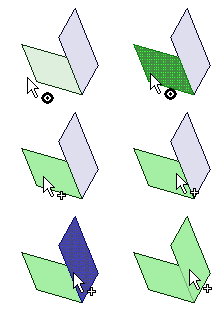
Select the Combine tool  from the Intersect ribbon group.
Click the first surface.
Ctrl+click the second surface to merge it with the first surface.
The second surface takes on the color and visibility properties of the first surface. The Structure tree shows the merge.
Select the surfaces that intersect to form an enclosed region using box selection.
Select the Combine tool from the Intersect ribbon group.
The enclosed region becomes a solid and takes on the color and visibility properties of the merged surface that appeared top-most in the Structure tree. The Structure tree shows the merge.
Click the Select tool in the Edit ribbon group.
Select the "open" edge of the set of surfaces, shown in black.
Click the Combine tool.
Click the Select tool in the Edit ribbon group.
Double-click the edge loops.
Click the Combine tool.
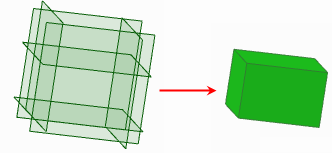
Six surfaces enclosing a volume, box-selected and combined with the Combine tool
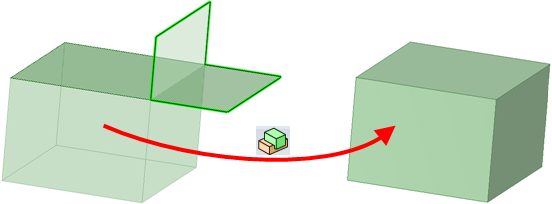
Repairing a self-intersecting surface with the Combine tool
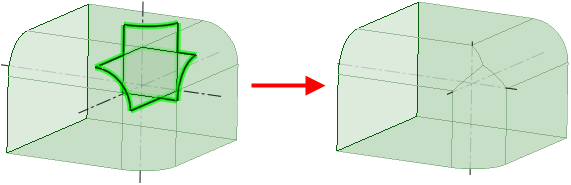
Ctrl+click to select an open edge loop of a surface, then close the surfaces with the Combine tool
© Copyright 2017 SpaceClaim Corporation. All rights reserved.